Document Design
You can customize the visual style of your legal documents so they match your brand. Changes apply to all documents that Lawwwing shows to your users.
This configuration is independent from the cookie banner design, which is managed in Customization > Design.
How to access
In the Lawwwing dashboard, go to Documents > Design.
Configuration options
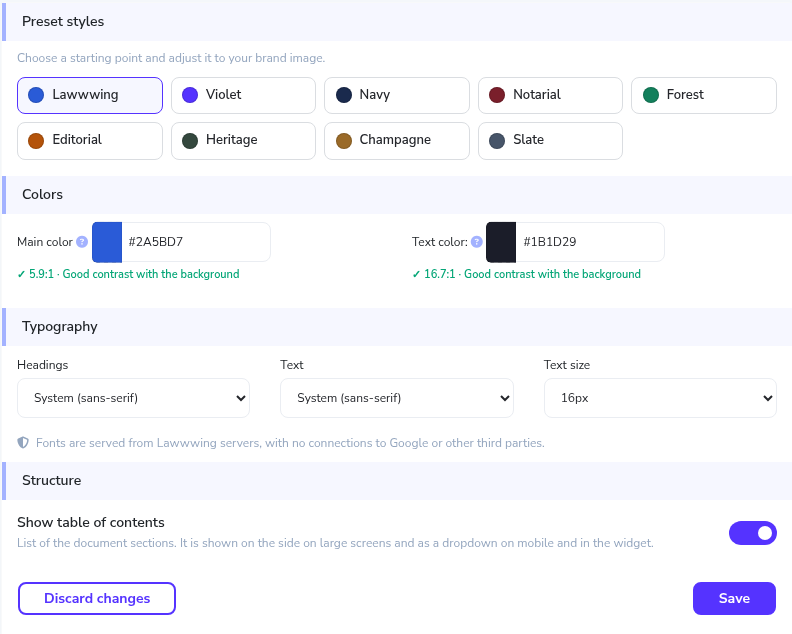
Preset styles
Choose a starting point and adjust it to your brand image. Lawwwing includes several preset styles:
- Lawwwing
- Violet
- Navy
- Notarial
- Forest
- Editorial
- Heritage
- Champagne
- Slate
Selecting a preset applies a base set of colors and typography that you can then customize.
Colors
- Main color: used for links and accent elements in the document.
- Text color: color of the document body.
Next to each color you will see the contrast ratio against the background. Sufficient contrast makes the document easier to read and helps meet accessibility criteria.
Typography
- Headings: font for document headings.
- Text: font for the body.
- Text size: base size of the content.
Fonts are served from Lawwwing servers, with no connections to Google or other third parties.
Structure
The Show table of contents option adds a list of the document sections. On large screens it appears on the side; on mobile and in the widget it appears as a dropdown.
Save your changes
When you are happy with the design, click Save. To go back without applying anything, use Discard changes.
If you run into any issues or need extra help, contact our support team.